KPK Teacher HRIS Portal – Login and Profile Guide
What Is the HRIS Portal KPK?
The HRIS portal KPK stands for the Human Resource Information System of the Elementary and Secondary Education Department (E&SED), Government of Khyber Pakhtunkhwa. It is the part of the department’s integrated Education Management Information System (iEMIS) that holds the service record of every teacher and employee.
The department also calls the same system HRMIS — the Human Resource Management Information System — and the login screen itself carries the title “Human Resource Management Information System.” Both names refer to the same record.

If iEMIS is the department’s filing cabinet, HRIS is the drawer that holds your file. It records who you are, what qualifications you hold, what training you have completed, where you are posted, what your BPS grade and cadre are, what type of job you hold, and your bank details. When the department plans transfers, checks eligibility for promotion, processes a deputation or a long leave, or prepares a retirement case, it works from the HRIS record. That is why the department returns to this record again and again and insists that it be complete and correct.
The department has made the completeness of HR profiles a repeated priority through 2026. A provincial letter dated 3 August 2026 noted that, despite earlier instructions and standard operating procedures issued on 16 July 2026, many employees’ HR profiles remained incomplete or not updated, and ordered all profiles to be completed by 20 August 2026.
A further letter dated 5 October 2026 ordered the updation of HR profiles, posting and transfer records, deputation, long leave, and study leave in iEMIS within ten days, and warned that failure to comply would result in strict disciplinary action under the Efficiency and Discipline Rules 2011.
District offices followed with their own letters — for example, the District Education Officer (Male) Dir Lower wrote to all head teachers and SDEOs on 15 October 2026 directing every employee to verify their HRIS profile. The message from the department is consistent: your HRIS profile is your official service record, and keeping it correct is your responsibility.
HRIS is also the doorway to e-Transfer. Teachers apply for transfers through the e-Transfer portal using their HRIS login, and the application draws on the HR record already held in the system. If your profile is incomplete or wrong, your transfer application can be held up or rejected, so the profile and the transfer are not separate jobs.
Who Needs the HRIS Portal?
Every employee of the Elementary and Secondary Education Department in Khyber Pakhtunkhwa has a record in HRIS, including:
- Teachers of all cadres — Primary School Teachers (PST), Senior Subject Teachers (SST), Subject Specialists (SS), and all other teaching cadres from BPS-12 to BPS-18 and above.
- Education management cadre officers — District Education Officers, SDEOs, ASDEOs, ADEOs, and other management staff.
- Ministerial and IT cadre staff working in education offices and schools.
- Newly appointed and newly promoted teachers, who must make sure their profiles are created and completed after joining or promotion, since e-Transfer applications for newly recruited and promoted teachers run through the same login.
- Head teachers and principals, who are responsible for checking that the profiles of the staff in their schools are verified and complete.
- District Education Officers and district iEMIS focal persons, who monitor completion in their districts and verify the data with school heads.
If you are a teacher, HRIS matters to you even if you never open it yourself. Your posting, your qualifications, your BPS, and your bank details all live there, and mistakes in that record can delay a transfer, a salary matter, or a retirement case. Checking your profile when the department asks you to is one of the simplest things you can do to protect yourself from administrative trouble later.
What You Need Before You Start
Before you log in to check or update your profile, gather the following:
- Your CNIC number. The HRIS login uses your CNIC number as the username. Keep your CNIC card with you, and enter the number carefully, without dashes, exactly as it appears on the card.
- Your password. This is the password issued for your HRIS account. If this is your first login, use the password the department or district office gave you, and change it to a password of your own as soon as you are in. Never share it with anyone.
- Your appointment and posting orders. Have your original appointment order and your current posting or transfer order at hand so you can check the dates, the school name, and the post title against the record.
- Your qualification documents. Degrees, certificates, and diplomas — including professional qualifications such as B.Ed or M.Ed — so you can check that every qualification is listed with the correct subject, year, and institution.
- Your training certificates. Any in-service training you have completed, with dates and the name of the training provider.
- Your bank account details. The account number and bank branch for salary purposes, exactly as they appear on your bank record.
- Your service history. Dates of previous postings, any deputation, long leave, or study leave, and your retirement date if it is recorded.
- A pen and paper. Note down anything that is wrong before you try to fix it, so you can report the corrections clearly to the district office if the portal does not let you change them yourself.
One caution: some details in HRIS can only be changed by the district office or the provincial EMIS team, not by the employee. That is normal. Your job is to spot the error and report it through the proper channel with proof, not to force a change yourself.
How to Log In and Check Your Profile: Step by Step
The department’s official e-Transfer User Manual for Teachers, Version 1.0, gives the HRIS address as www.kpese.gov.pk/hris and instructs teachers to log in with their CNIC. The login screen itself shows fields for CNIC number and password, a “Remember username” checkbox, and a “Sign-In” button, along with buttons for the e-Transfer user guides. The steps below follow that official route. The department does not publish a public screen-by-screen manual for every part of the profile, so where the manual ends, the steps tell you to use the official support route rather than guessing.
Step 1: Go to the official route. Open the HRIS portal at www.kpese.gov.pk/hris, the address given in the department’s official e-Transfer User Manual for Teachers. If that address does not open, go to the department’s official website at kpese.gov.pk and use the links there, or ask your district iEMIS focal person or the EMIS Section at your DEO office for the current link. Do not use a login link forwarded on social media or in an unofficial WhatsApp group.
Step 2: Enter your CNIC number. In the CNIC field, type your CNIC number without dashes — thirteen digits, exactly as printed on your CNIC card. Check each digit before moving on. A single wrong digit will either fail the login or, worse, open the wrong record, so take your time.
Step 3: Enter your password. Type your password in the password field. Passwords are case-sensitive, so check that caps lock is off. If this is your first login, use the password issued to you. The user manual instructs teachers to change their password on the dashboard after the first login — do that before anything else, and choose a password you can remember but nobody else can guess.
Step 4: Sign in. Click or tap the “Sign-In” button. If the page asks you to confirm anything, read it before confirming. If the login fails, stop after one or two careful attempts. Repeated wrong attempts can lock an account, and unlocking it takes a request to the district office.
Step 5: Check your dashboard. After signing in, you should see your dashboard with your name and basic details. Confirm that the name, school, and designation shown are yours. If they are not, log out at once and contact your district iEMIS focal person. Do not make changes in a record that is not yours.
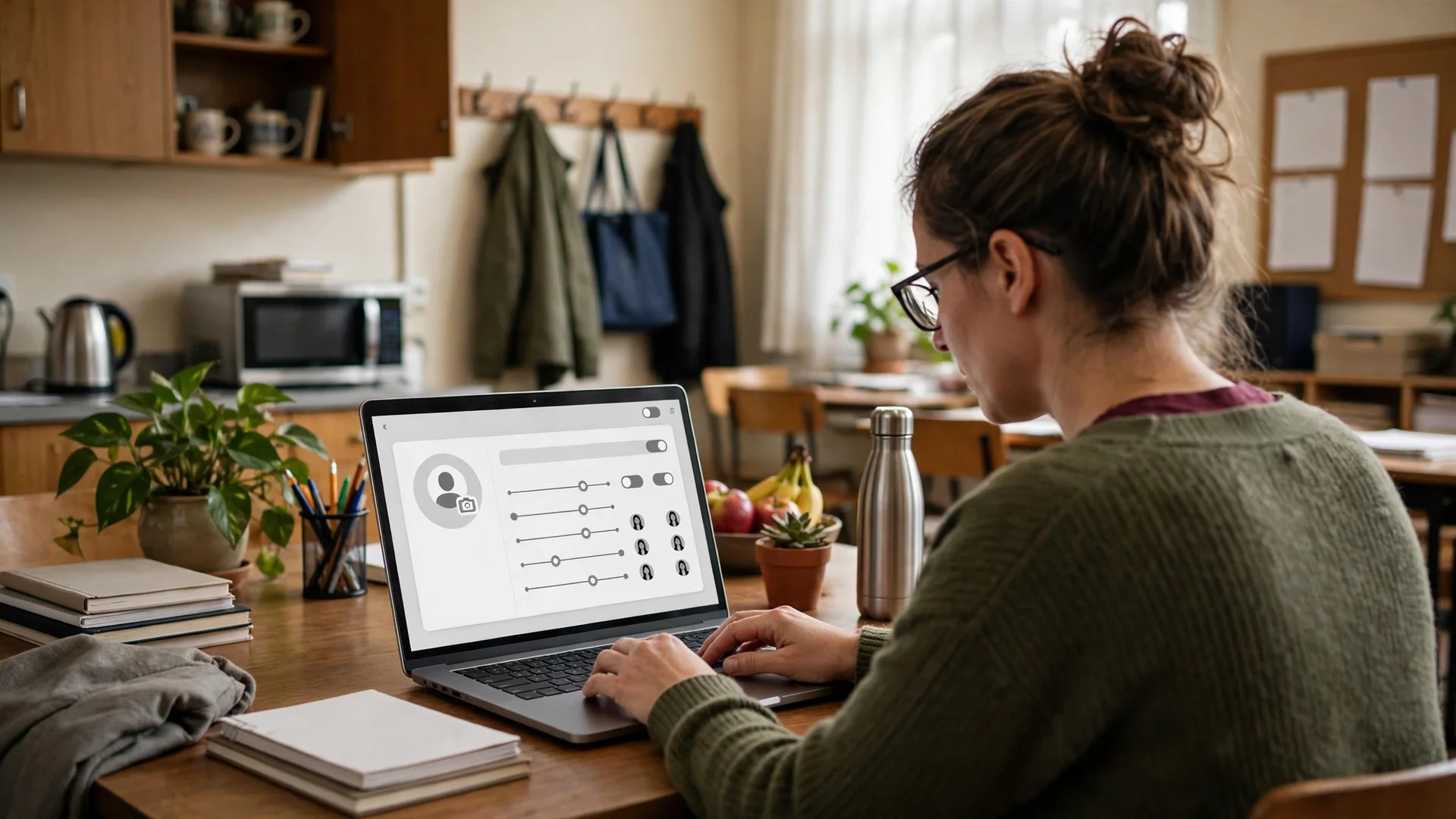
Step 6: Open your profile and check it section by section. The department’s 3 August 2026 letter lists nine parts that every HR profile must have completed: basic information; education and professional qualification; training details; posting and transfer; BPS; job type; cadre group; retired, lien, deputation, or leave form; and bank details. Go through each one and compare it with the documents you gathered. Check spellings of names, dates of birth, qualification subjects and years, posting dates and school names, BPS grade, cadre, and bank account number.
Step 7: Note every error. Write down each mistake with the correct information and the document that proves it. For example: “Qualification shows B.A. 2015, correct is B.A. 2016 — degree attached.” This list is what you will use to get the correction made.
Step 8: Submit corrections through the proper channel. District offices have directed different procedures at different times. The District Education Officer (Male) Dir Lower, in his letter of 15 October 2026, directed employees to submit corrections within two days, with different procedures for Primary School Teachers and for other staff.
Follow the procedure your own DEO office has given for the current round. Where the portal allows you to edit a field yourself, make the correction and save it. Where it does not, submit the correction to your head teacher or to the EMIS Section at the DEO office with copies of the supporting documents, and keep a copy of what you submitted.
Step 9: Check again after the correction. A correction is only finished when the profile shows the right information. Log in again after a few days and confirm the change has been made. If it has not, follow up with the district office, with your written record of the request.
Step 10: Use the same login for e-Transfer when a round opens. When the department opens an e-Transfer round, eligible teachers apply through the e-Transfer portal using their existing iEMIS credentials. The user manual for newly recruited and promoted teachers describes the process: log in, change the password if needed, choose the e-Transfer application option, select the type of adjustment, give up to three school preferences, attach supporting documents as a PDF, add comments if needed, and submit. Always use the official e-Transfer portal link given in the department’s notification for that round, and read the user manual for that round before applying.
Common Problems and Fixes
You cannot log in, or the system says the username or password is incorrect. This is the most reported problem with HRIS and the related attendance app. Teachers have shared screenshots showing an “Incorrect username or password” error, and some have reported accounts deactivated after long periods without use. First, check the CNIC number digit by digit and check that caps lock is off. If it still fails, stop guessing and contact the EMIS Section at your DEO office or your district iEMIS focal person. They can check whether your account is active and arrange reactivation or a password reset. Do not give your password to anyone who offers to fix the login for you.
Some options are blocked or greyed out in your profile. Several teachers have reported that parts of their profile cannot be edited. This usually means that field is locked for editing by employees and can only be changed by the district or provincial office. Note the field, gather the document that proves the correct information, and submit a written correction request through your head teacher or the EMIS Section at the DEO office.
Your posting or transfer is not shown correctly. Posting and transfer records are updated through the e-notification module, and the 3 August 2026 letter directs districts to use that module for postings, transfers, deputation, and leave. If your current posting is missing or wrong, report it to the EMIS Section with a copy of your posting or transfer order. Do not wait — an incorrect posting record can affect your transfer application and your salary.
Your qualifications or training are missing. Check first that you are looking at the right section — qualifications and training are separate tabs. If a qualification is genuinely missing, submit a correction request with a copy of the degree or certificate. Keep the original document safe and submit a clear copy.
Your bank details are wrong. This matters because salary is paid against this record. Report the error to the EMIS Section at the DEO office with a copy of your bank statement or a letter from your bank showing the correct account number and branch. Check the correction after it is made.
You are a newly appointed teacher and your profile does not exist yet. New appointees’ profiles are created through the district office as part of the joining process. If your login does not work after joining, contact your DEO office and ask whether your HR record has been created and your credentials issued. Do not try to register yourself.
The portal is slow or will not load. This often happens when many employees are using the system at once, for example during a profile updation drive or an e-transfer round. Try again outside peak hours, and do not leave a deadline task to the last day.
Security Note
Your HRIS login is the key to your entire service record — your identity, your qualifications, your postings, and your bank details. Never share your CNIC number or your password with anyone who asks for them by phone, WhatsApp, or message, and never let a shopkeeper, agent, or colleague log in as you. The department will never ask for your password by phone or message. If someone offers to update your profile for a fee, refuse — profile corrections are free and go through your head teacher and the DEO office. Change your password at once if you think someone else may have seen it. EduDesk never asks for your password, your CNIC, or any employee’s private information. If anyone asks you to send those details to EduDesk or to any other website, do not send them.

Official Links
- Khyber Pakhtunkhwa Elementary and Secondary Education Department (KPESE), official website: https://kpese.gov.pk/
- E-Transfer page on the KPESE website, including the E-Transfer Plus Policy 2026: https://kpese.gov.pk/etransfer
- Integrated Education Management Information System (iEMIS) page on the KPESE website: https://kpese.gov.pk/integrated-education-management-information-system-iemis/
- E-Notification page on the KPESE website: https://kpese.gov.pk/e-notification/
- KPESE contact: telephone (091) 9210480, email [email protected], Block A, 3rd Floor, Building A, Civil Secretariat, Peshawar.
The HRIS portal address given in the department’s official e-Transfer User Manual for Teachers (Version 1.0) is www.kpese.gov.pk/hris. If that address does not open for you, reach it through the department website at kpese.gov.pk or ask your district iEMIS focal person for the current link. For login problems and corrections, your first contact is the EMIS Section at your District Education Office or your district iEMIS focal person.
Frequently Asked Questions
What is HRIS? HRIS is the Human Resource Information System of the Elementary and Secondary Education Department, Khyber Pakhtunkhwa — also called HRMIS. It is the module of iEMIS that holds the service record of every teacher and employee: personal details, qualifications, training, postings, BPS, cadre, job type, leave and deputation, and bank details.
How do I log in to HRIS? Use the address given in the department’s official e-Transfer User Manual for Teachers, www.kpese.gov.pk/hris, and log in with your CNIC number as the username and your password. If the address does not open, use the department website at kpese.gov.pk or ask your district iEMIS focal person for the current link.
What should I check in my profile? All nine parts the department lists: basic information, education and professional qualification, training details, posting and transfer, BPS, job type, cadre group, retired, lien, deputation or leave form, and bank details. Compare each one with your original documents.
I found a mistake in my profile. What do I do? Note the mistake and the correct information, gather the document that proves it, and submit a correction through the procedure your DEO office has given — usually through your head teacher or the EMIS Section at the DEO office. Some fields can only be changed by the district or provincial office, so a written request with proof is the proper route.
Can I use my HRIS login for e-Transfer? Yes. Teachers apply for transfers through the e-Transfer portal using their existing iEMIS credentials, and the application draws on the HR record. Make sure your profile is complete and correct before a transfer round opens, because an incomplete profile can hold up your application.
Who do I contact if I cannot log in? Your district iEMIS focal person or the EMIS Section at your District Education Office. They can check whether your account is active and arrange reactivation or a password reset. Never share your password with anyone offering to fix the login for you.
Related EduDesk Guides
Your BPS grade in HRIS decides your pay scale, so it is worth knowing how your salary is worked out. You can check it with our salary calculator: https://edudesk.pk/kpk-salary-calculator/
Last updated: 15 November 2026
Sources
- Khyber Pakhtunkhwa Elementary and Secondary Education Department, official website: https://kpese.gov.pk/
- Khyber Pakhtunkhwa Elementary and Secondary Education Department, E-Transfer page: https://kpese.gov.pk/etransfer
- Khyber Pakhtunkhwa Elementary and Secondary Education Department, Integrated Education Management Information System (iEMIS) page: https://kpese.gov.pk/integrated-education-management-information-system-iemis/
- Elementary and Secondary Education Department, Government of Khyber Pakhtunkhwa, e-Transfer User Manual for Teachers, Version 1.0 (login at www.kpese.gov.pk/hris with CNIC; change password on dashboard; e-Transfer application steps), as published by the department.
- Elementary and Secondary Education Department, Government of Khyber Pakhtunkhwa, letter No. EMIS/E&SE/1-4/IEMIS/2026 dated 3 August 2026 on completion and updation of HR profiles in HRMIS-iEMIS (Assistant Director-IV, EMIS).
- Elementary and Secondary Education Department, Government of Khyber Pakhtunkhwa, letter No. SOG/E&SED/2-11/2025 dated 5 October 2026 on updation of HR profiles, posting and transfers, deputation, long leave, and study leave in iEMIS.
- Office of the District Education Officer (Male) Dir Lower, letter dated 15 October 2026 on verification and updation of employee profiles in HRIS.
- Elementary and Secondary Education Department, Government of Khyber Pakhtunkhwa, letters dated 18 September 2026 on updation and completion of employees’ profile cards.
- District Education Office (Male) Bannu, HRIS login screen as published on its official page, showing the CNIC and password fields and the e-Transfer user guide links.